Showing posts with label scripts. Show all posts

10 Commonly use command in Shell/Bash Scripting

Below listed 10 commands will help you with shell scripting.

1. cat :

This command will show all the file content.
This can be used to read content of zip files too only by adding required prefix to "cat" command.

Example: You want to read content of file1.txt and  file2.zip.

>> cat file1.txt

>> zcat file2.zip

2. cd :

This command will change directory.
This can also be used to return back to home directory.

Example: If you want to go to  directory1. Once you reach directory one you can just type cd and it will take back to home directory.

>> cd /directory1

3. mkdir :

This command creates new directory.

Example: You want to create new directory name D1.

>> mkdir D1

4. cp/mv : 

Command cp/mv will create copy of file to another directory. However, when we use mv it will delete the original file.

Example: You want to copy file1 to location /new while only move file2 to location /new.

>> cp file1 /new

>> mv file2 /new

5. rm :

This will remove/delete file and directory.

Example: You want to remove file1.

>> rm file1

6. grep:

This command will help to search specific word in file.
Please click on below link to find more about grep command.
Example: You want to search echo in file1

>> cat file1 | grep "echo"

7. ls:

This command will get the list of available file & directory in a folder.

8. tail :

This command is used to print the last/recent lines from the file. N is the user input which states number of lines and need to be provided along with command.

Example - You want to see recent/last 5 lines of new created file1.

>> tail -5 file1.

9. less :

This command allows user to only view the file. "shift+G" to read last line and "G" to read first line of the opened file.

10. chmod :

This command is used to modify the access/permission of a user

Most Commonly used "grep" commands...

Some history of grep command before moving to its practical use:

  • Grep is a command line utility used in Unix and Linux to find/search text.
  • Grep stands for "g/re/p" ↔ globally search a regular expression and print stands
  • Grep was originally developed only for UNIX OS. However, later it was available for other OS which are similar to UNIX.
  • Grep was created overnight by Ken Thompson to help him analyze text while fixing some bug which had large amount of text.
  • Grep was first included in Unix version 4.
  • Early variants of grep included 'egrep' and 'fgrep' 

Lets dive in to its basic uses:

  1. Syntax : To search single string in single file. ↠  grep "string" filename
  2. Syntax : To search single string in multiple files. ↠ grep "string" filename*
  3. Syntax : To search case insensitive string ↠ grep -i "string" filename
NOTE: While searching string in multiple files, we need to provide only common characters from filename before putting '*' ; this will make sure all files containing those common character in names are searched.

Other Uses of Grep Command :

  1. To use grep recursively ↠ grep -r "string" filename
  2. To suppress output (filename) ↠ grep -hR "string" filename
  3. To search invert using grep ↠ grep -v "string" filename
  4. To use grep with shell pipe ↠ dmesg | egrep "string" 
  5. To use grep with cat command ↠ cat filename | grep 'string'
  6. To count amount of string in file using grep ↠ grep -c "string" filename
grep command options
Description
-i
Ignore case sensitivity
-w
To match exact string
-v
Select invert lines from file
-n
Print line number with output
-h
Suppress the file name prefix in output
-r
Search directories recursively
-l
Print only names of file with selected lines
-c
Print only a count of selected lines per FILE

Learn to write your first shell script...

Shell scripting is writing a series of command for the shell to execute. 

You can use ssh application name "putty".

If you have windows PC then use power shell application or cmd to launch .sh files.

You can use simple notepad or notepad++ to write these scripts


Steps to create your first Shell Script !!

  1. Create a file using a vi editor. Name script file with extension .sh (if using putty)
  2. Start the script with #! /bin/sh (if using notepad start from #2)
  3. Write below mentioned code.
  4. Save the script file as filename.sh
  5. For executing the script type bash filename.sh

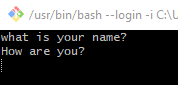
Once script is saved. Run it as ./filename.sh and you can see below output.


Cheers to you on learning your first shell script !!!